Database modeling with Rational Rose
This Daily Sprint is about Database designing with the tool Rational Rose. Target of this exercise is, to be able to design a data model with Rational Rose (Entitys, attributes and associations) and export it to a scheme and finally get the complete database out of it.
The following text is a step by step instruction to create your own database with rational rose. In addition, some exercises and questions are given.
Credit goes to Ilja Jochum, who developed this example!
1) Start Rational Rose
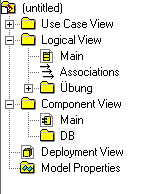
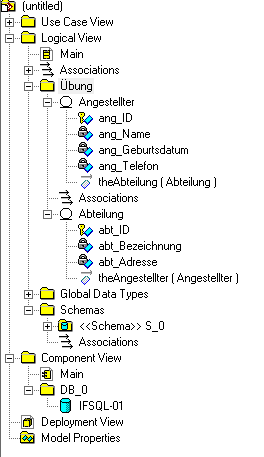
When the application is started, a dialog appears which can be closed. Then, the following package structure have to be created with “Rightclick -> new -> Package” :
2) Creation of entities
The creation of entities is done with “Rightclick on package Übung -> new -> Class”. Now a class gets created which can be altered to be an entity. This is due to the fact that Rational Rose provide more functions that only database designing with entities.
For the alteration, open the specifications through a rightclick on the class and then “Open Specification”. On the tab “General”, the stereotype have to be changed to “entity”.
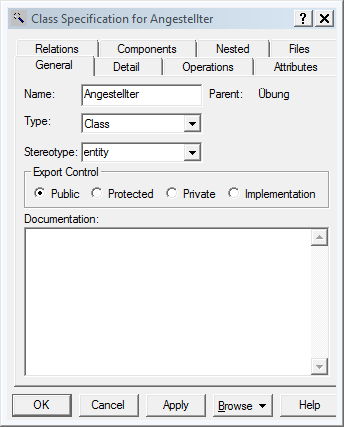
In addition, on tab “Detail”, the radiobutton under Persistence have to be set to “Persistent”. Now can the entity put on the graphical surface in the middle of the application. To get a better presentation, the display type can be altered to the UML standard with “rightclick -> Options -> Stereotype Display” by changing the options to “None”.
When the entity is deleted in the graphical area, the entity is NOT deleted within the locical view and the same goes for associations!
3) Adding attributes
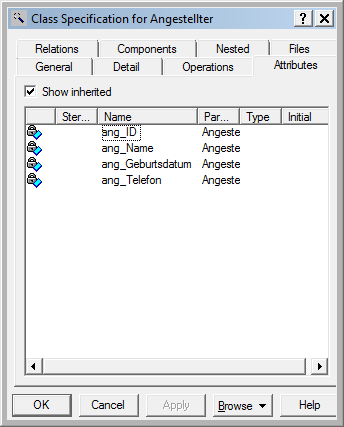
Attributes have to be added in the specifications of each entity at the tab “Attributes”. With “rightclick -> insert”, new attributes can be added.
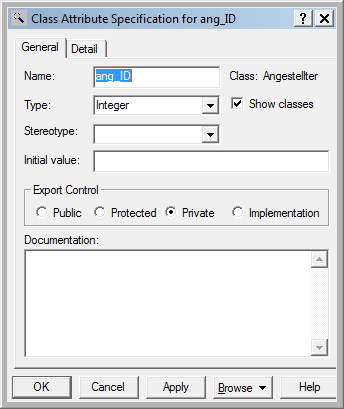
With “rightclick -> Specification” on an attribute, its type and properties can be altered.
 |
 |
To set a primary key, it is needed to make “rightclick on the regarding attribute -> Data modeller”. The option Part of Object Identity have to be marked! Important: The icon (the key) in the graphical sections have no influence!
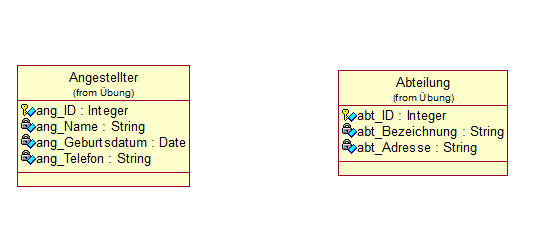
4) Adding associations
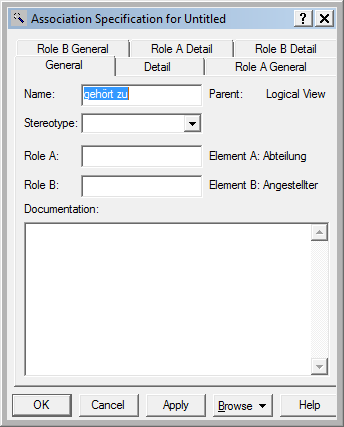
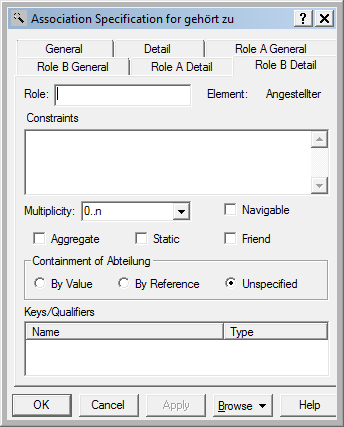
For adding an association, the connector “Unidirectional Association” in the toolbox have to be selected and a line between the entities must be drawn. Afterwards a name and the regarding multiplicity have to be set in the specifications. Further, the checkbox Navigable have to be deselected on both sides.
 |
 |
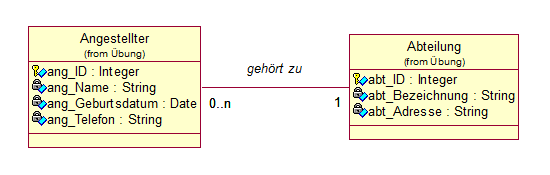
The model should then look somehow like that:
5) Scheme export
First of all, a new Database with the preferences of Microsoft SQL Server have to be created with “rightclick -> data modeller -> new -> database”. In the specifications, the latest version of the SQL server have to be selected.
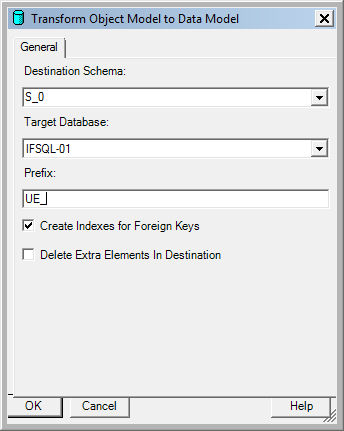
Now, the transform assistant get started with “rightclick on the package Übung -> data modeller -> transform object model to data model”. Here, the database which was created in the last step have to be selected and if wanted, a prefix can be defined. With OK, the scheme is created.
 |
 |
6) Get the SQL Script
The last step is to start the scheme export, which is done with forward engineering. This wizard is started with “rightclick -> data modeller -> Forward engineer”. Here it can be selected what should be in the export. The following selection is sufficient for the normal needs.

In the next step of the wizard, a path and a filename have to be given and after clicking on Finish, the export is completed and the SQL Script is generated!

Exercises
- Design a primary key which consists of two attributes
- Alter the example that two associations are between the entities
- Design a Database with at least 3 associations.
Rational Rose
Questions about designing with Rational Rose
